Pet Professionals Help Open the app ↗
Pricing & money · Guide 10

Create add-ons and attach them to services

Offer optional paid extras — nail trim, pick-up & drop-off, extra pet — that clients can add to a booking.

For
Every pro
Time
~1 min / add-on
Before you start
After you've added a service

Add-ons are the optional extras you tack onto a booking — a nail trim, pick-up & drop-off, an extra pet, a bath. You define each one once, choose how it's charged (a flat fee or a %, and whether it's per booking, per pet, or per night/visit), then attach it to any service. When that service is booked, the add-on shows up as a tick-box that's added to the price and the invoice.

  1. 1

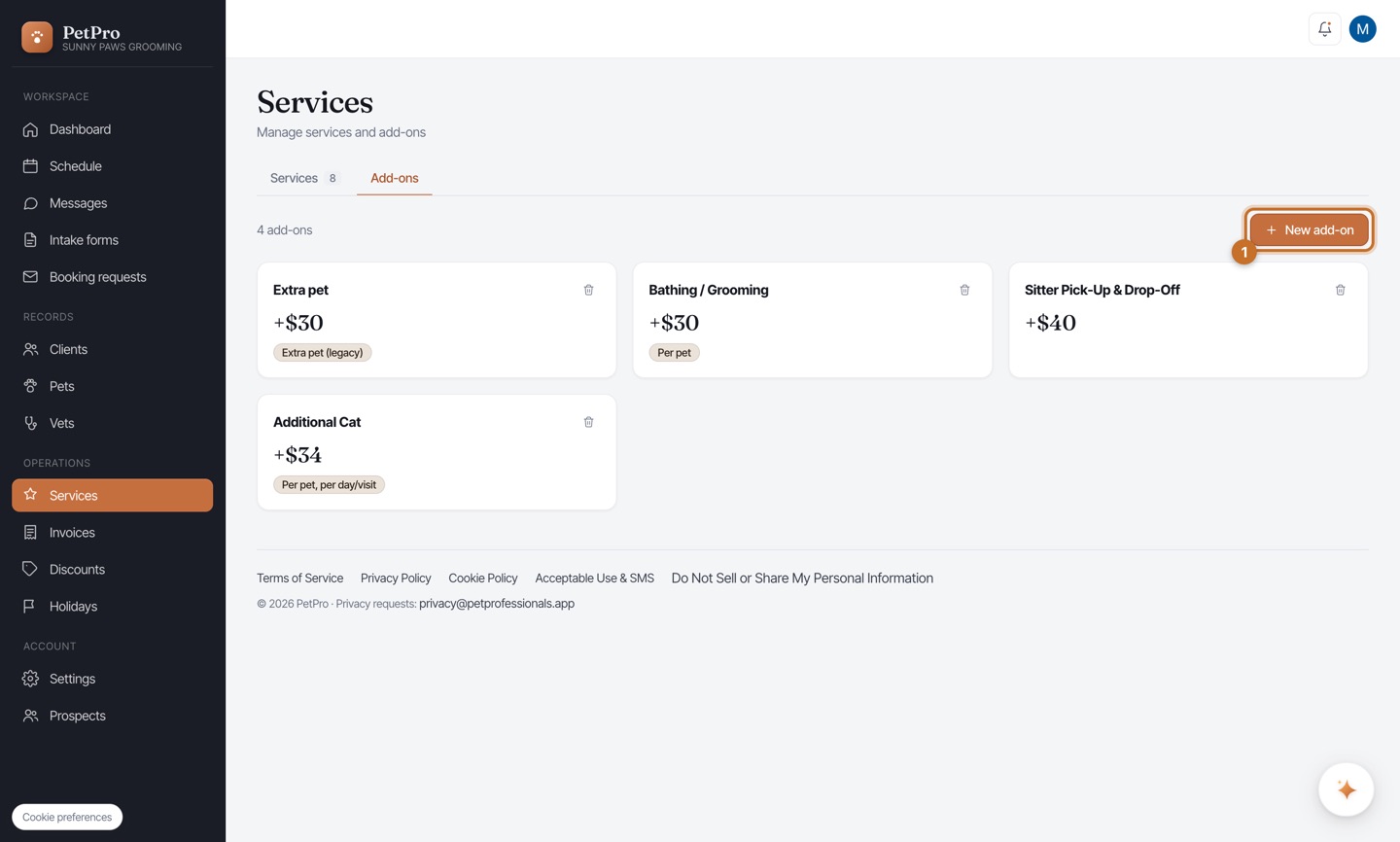
    Open Services and switch to the Add-ons tab. This lists every add-on you've built, with its price. Click + New add-on to create one.
    Create add-ons and attach them to services — step 1
  2. 2

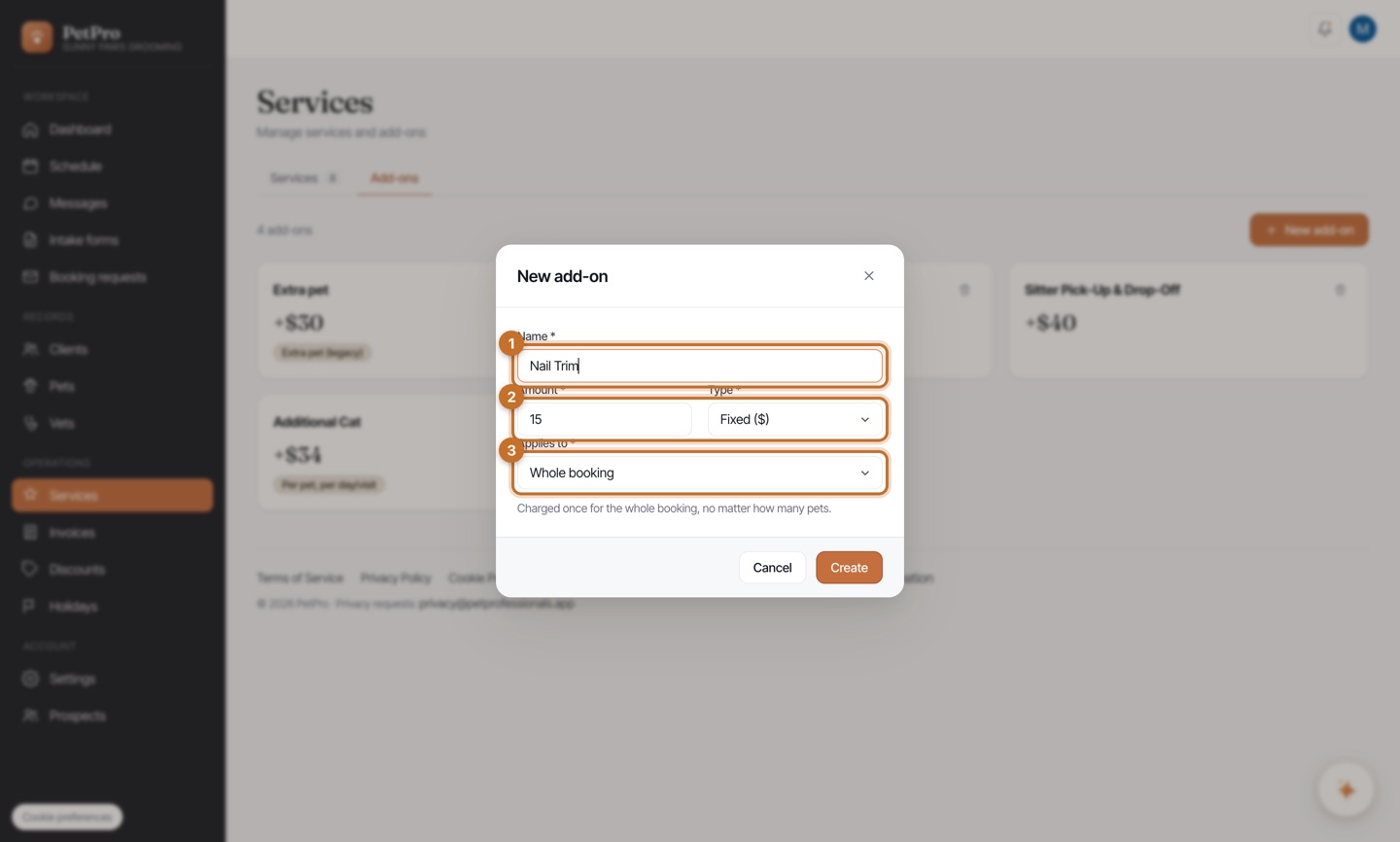
    Give it a Name (e.g. Nail Trim), an Amount, and a TypeFixed ($) for a flat fee, or Percentage (%) of the booking. Then set Applies to: Whole booking (charged once, however many pets), Per pet, or Per day/night/visit. A line underneath spells out exactly what will be charged, with a worked example.
    Create add-ons and attach them to services — step 2
  3. 3

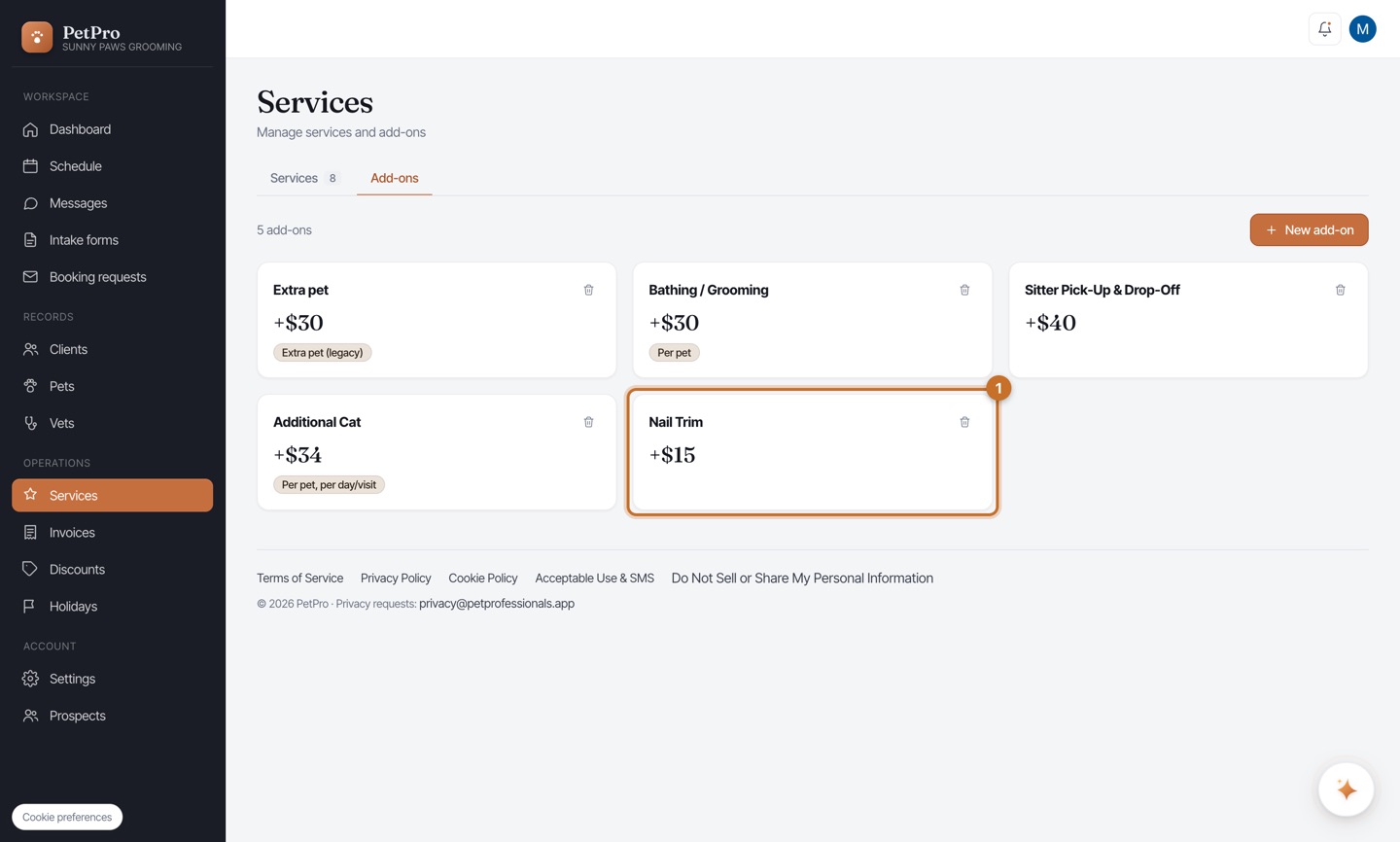
    Click Create. The add-on appears as a card on the Add-ons tab — its price, and (unless it's whole-booking) a chip showing how it's charged. Click the card any time to edit it, or the trash icon to remove it.
    Create add-ons and attach them to services — step 3
  4. 4

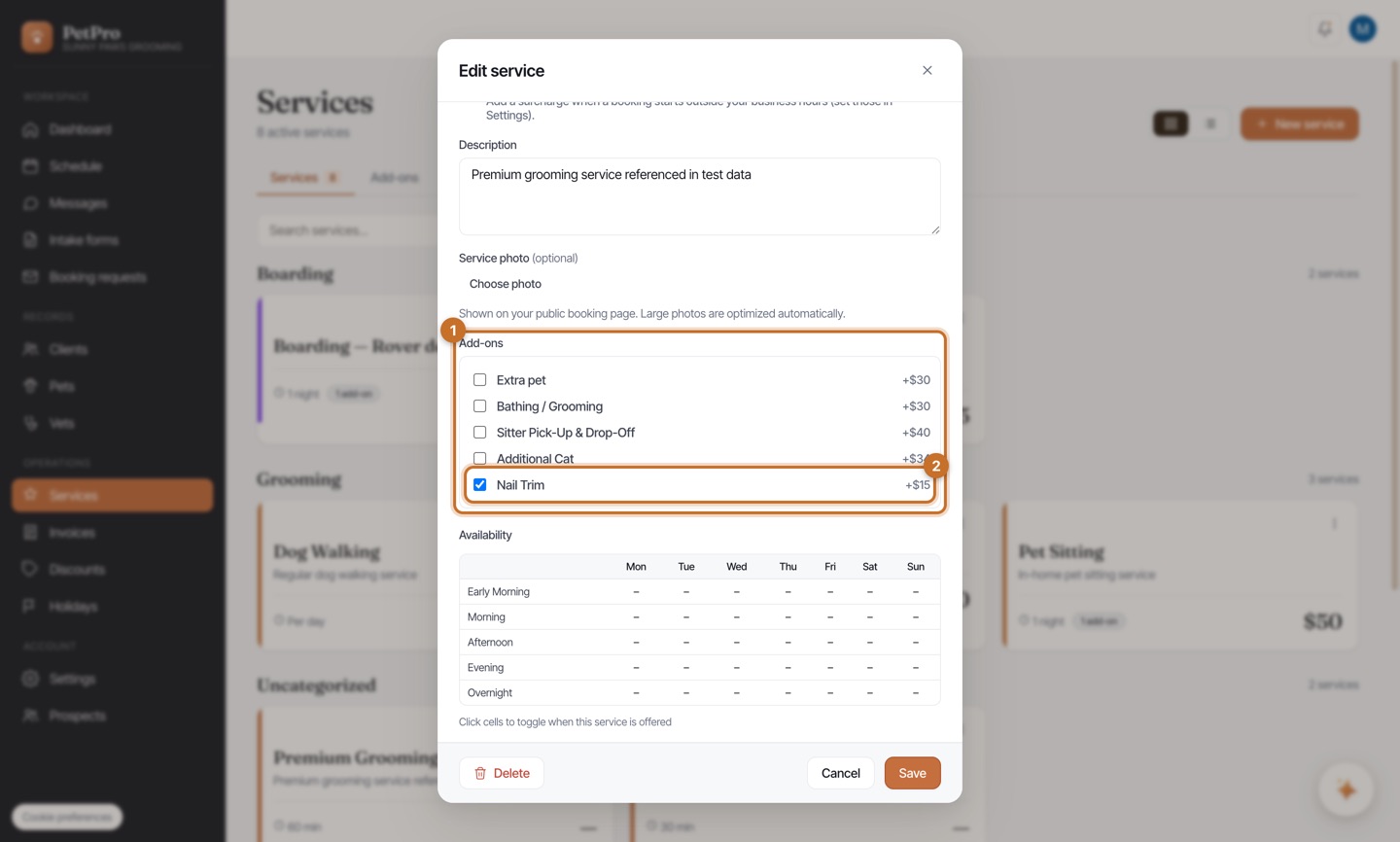
    Attach it to the services it applies to. On the Services tab, open a service, scroll to Add-ons, and tick the ones this service offers, then Save. (Tip: if you put a per-pet add-on on a service that already charges per pet, PetPro warns you so you don't double-charge.)
    Create add-ons and attach them to services — step 4
You're done

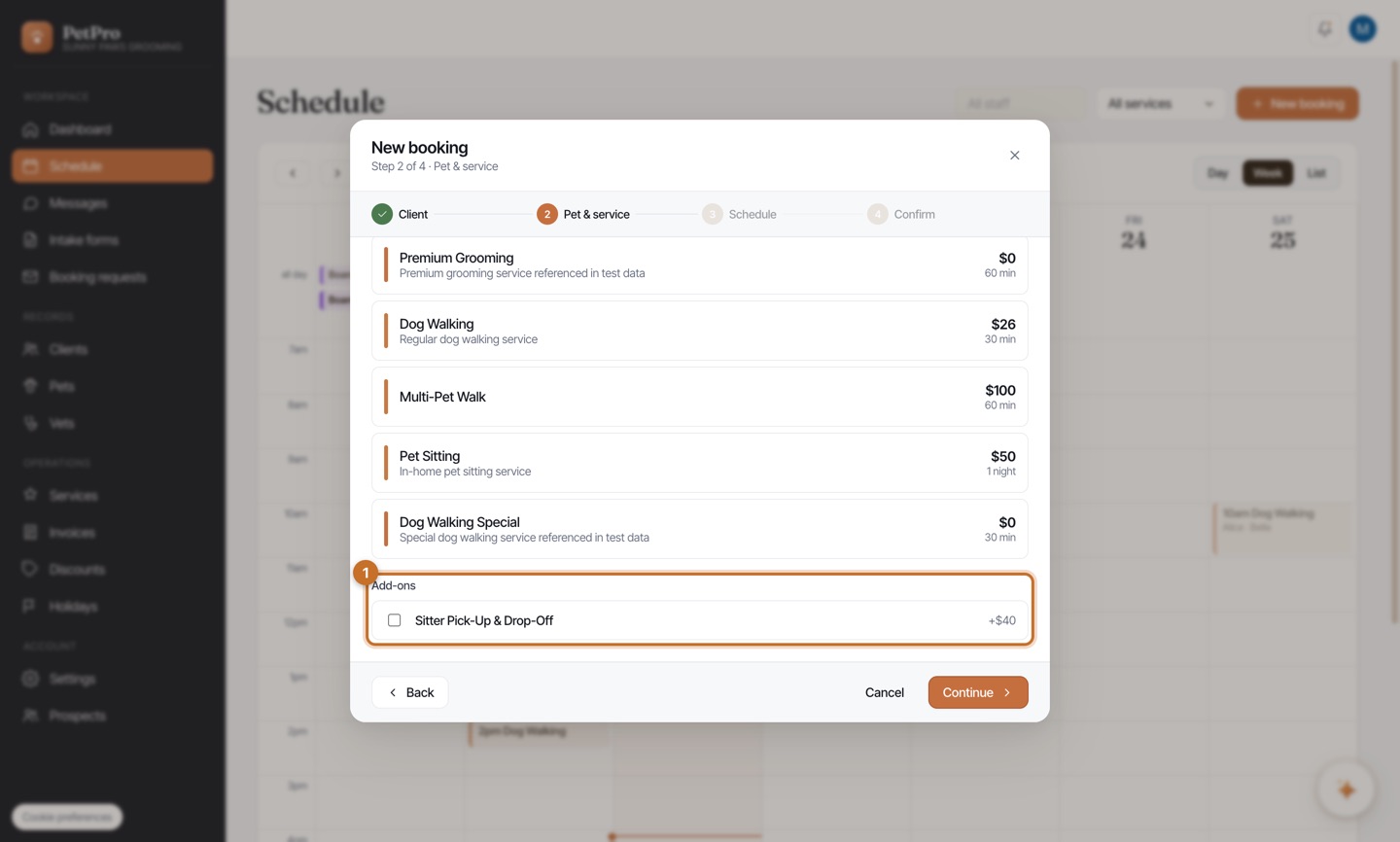
Now, whenever you book a service that has add-ons, they appear as tick-box extras on the Pet & service step — anything selected is added to the booking total and flows straight through to the invoice.

Create add-ons and attach them to services — result