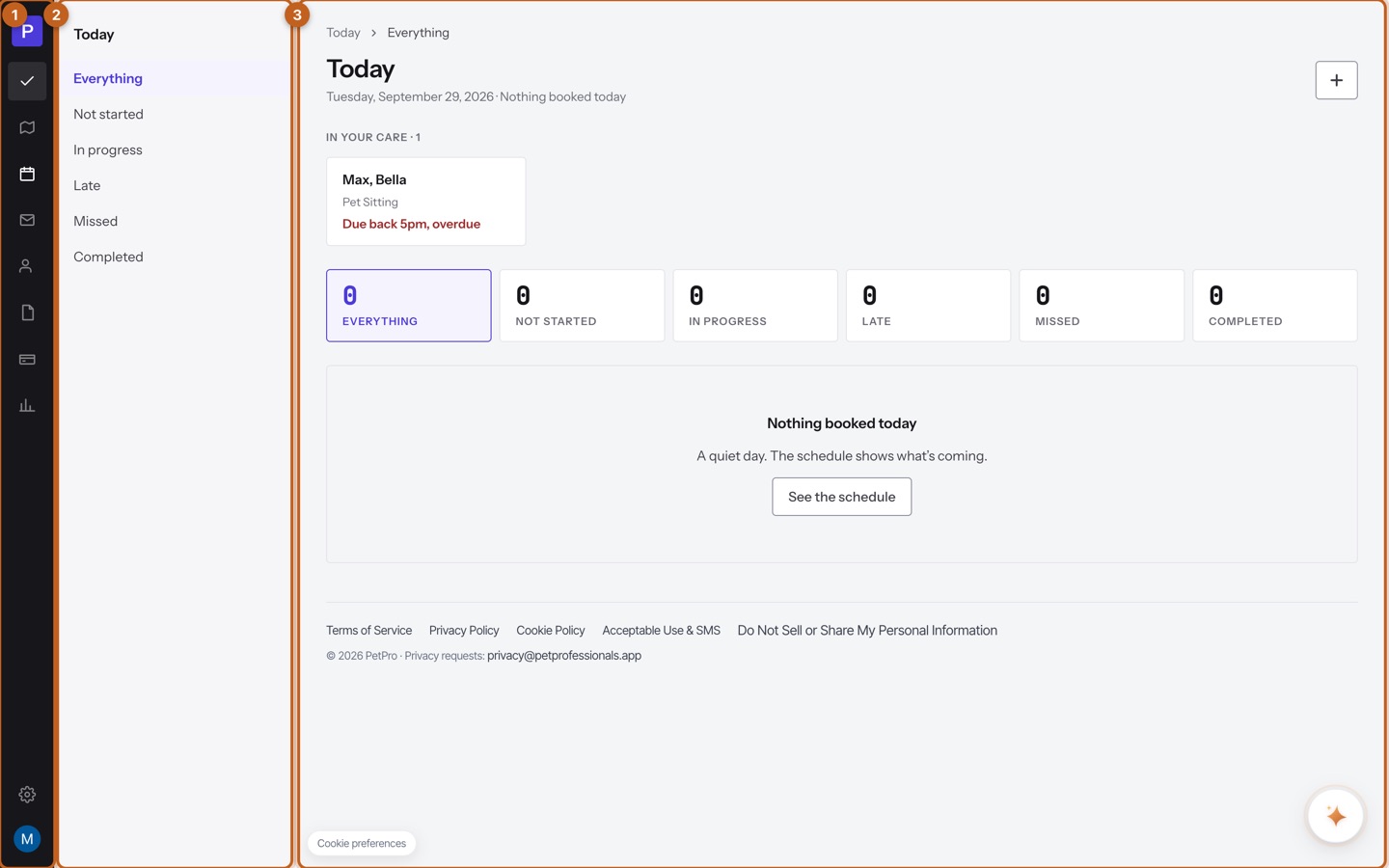
Three columns, always in the same place. 1 is the rail — the eight places you can be. 2 is the section list — what is inside the place you picked; it changes as you move down the rail. 3 is the work area. The old sidebar listed every screen in one long column; now the rail holds the places and the section list holds the screens inside them, so there is less to read at once.
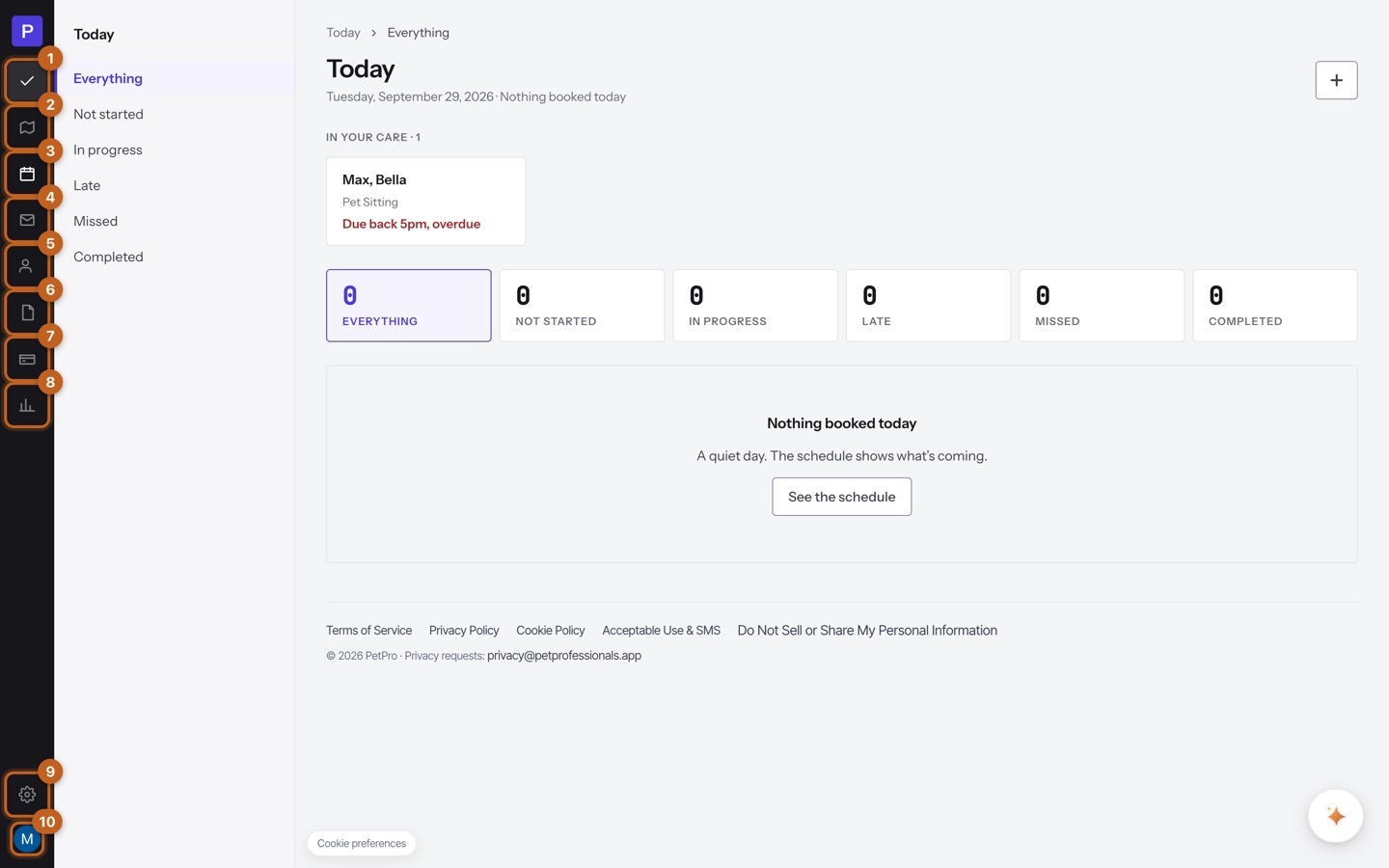
The rail, top to bottom: 1 Today · 2 Plan · 3 Schedule · 4 Messages · 5 Clients · 6 Services · 7 Invoices · 8 Reports. Below the gap sit 9 the gear, which is Settings, and 10 your initial, which opens Manage account and Sign out. The icons carry no labels — rest the pointer on one and its name appears. Nothing was deleted: every old sidebar item is inside one of these ten.
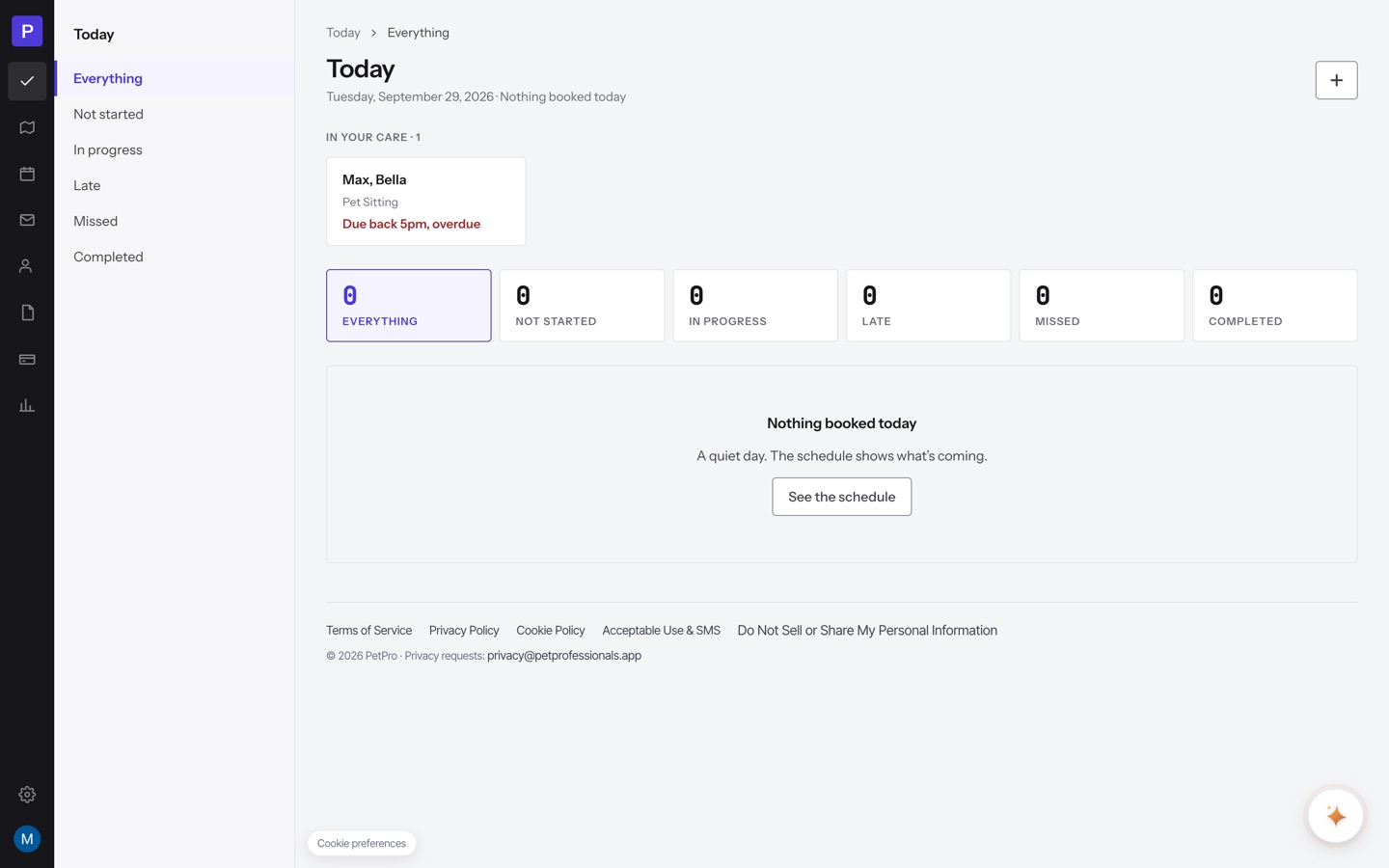
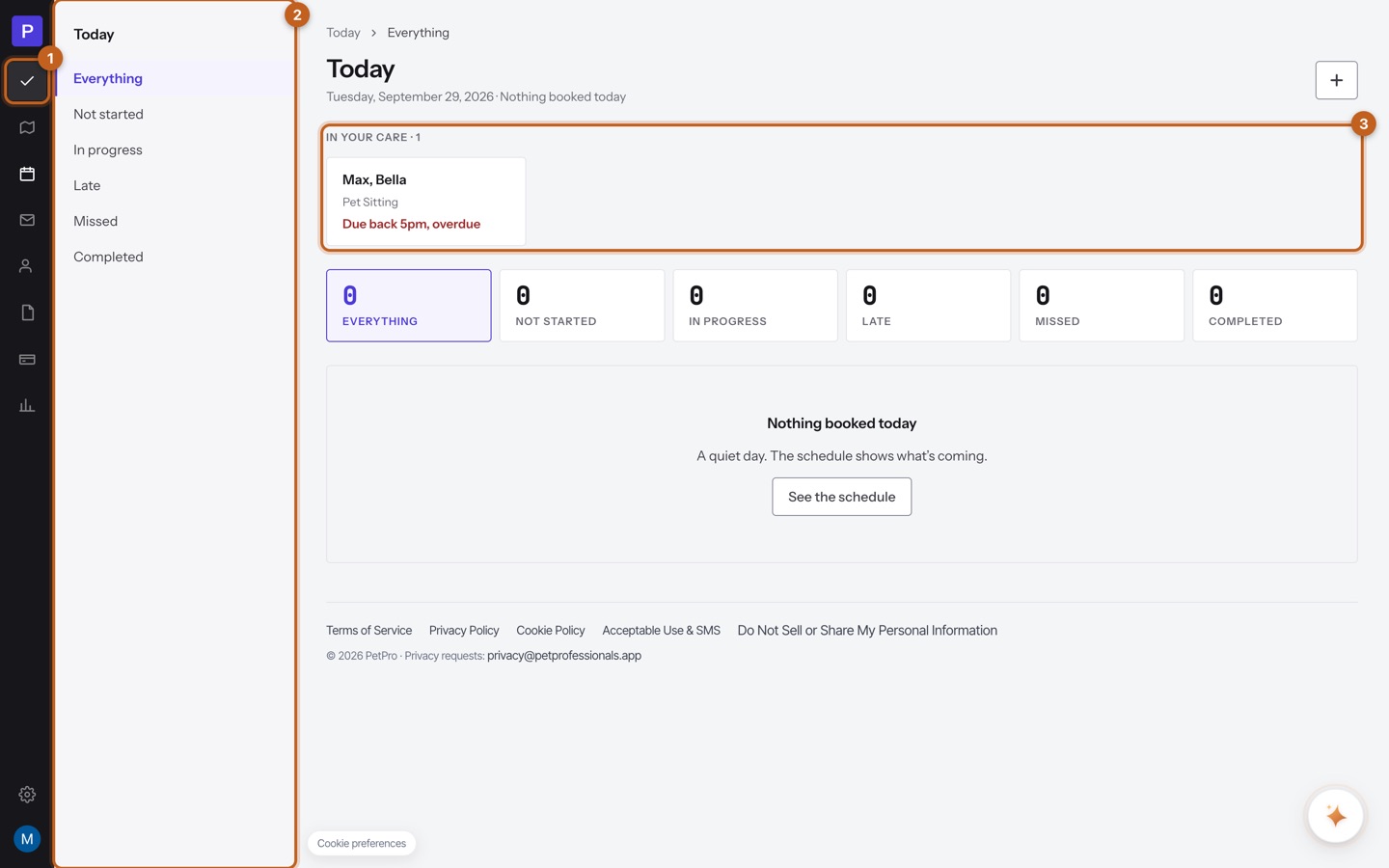
The Dashboard is now Today (1). It opens on today's date and lists the visits you actually have to do. The section list (2) is the same day filtered — Everything · Not started · In progress · Late · Missed · Completed — and In your care (3) is the pets currently with you, with the one that's overdue back called out in red. What is not here any more is the money: the takings figures that used to sit on the Dashboard moved to Reports, and the Promote your booking page panel moved to Settings › Booking page.
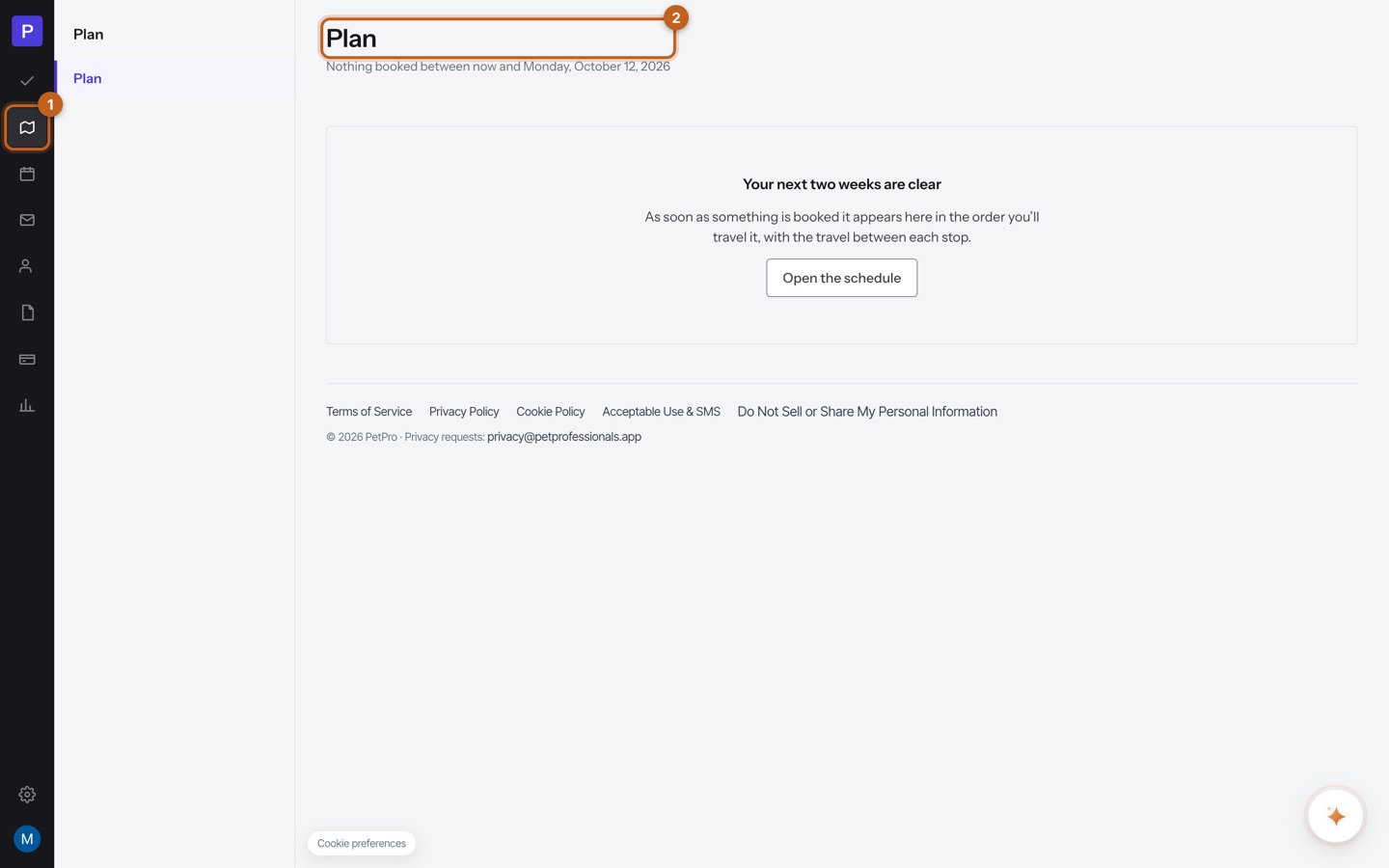
Plan (1) is new. It shows the next fortnight as a running order — the visits in the sequence you'll travel them, with the travel between each stop — so you can see a day before you're standing in it. It is a reading screen: you book and change things on the Schedule.
Schedule is the calendar, and it takes the whole screen. Use the arrows to reach any week, and drag a booking to move it. The Cancelled button at the top right is where bookings go when they come off the books rather than disappearing. The calendar itself has a STAYS lane across the top for boarding and multi-day stays, with timed visits below. The button is now New booking — it used to read + New booking.
Messages (1) is your client texts, and the section list (2) has a second item: Requests, with a count of what is waiting. This is where Booking requests went — it used to be its own sidebar item.
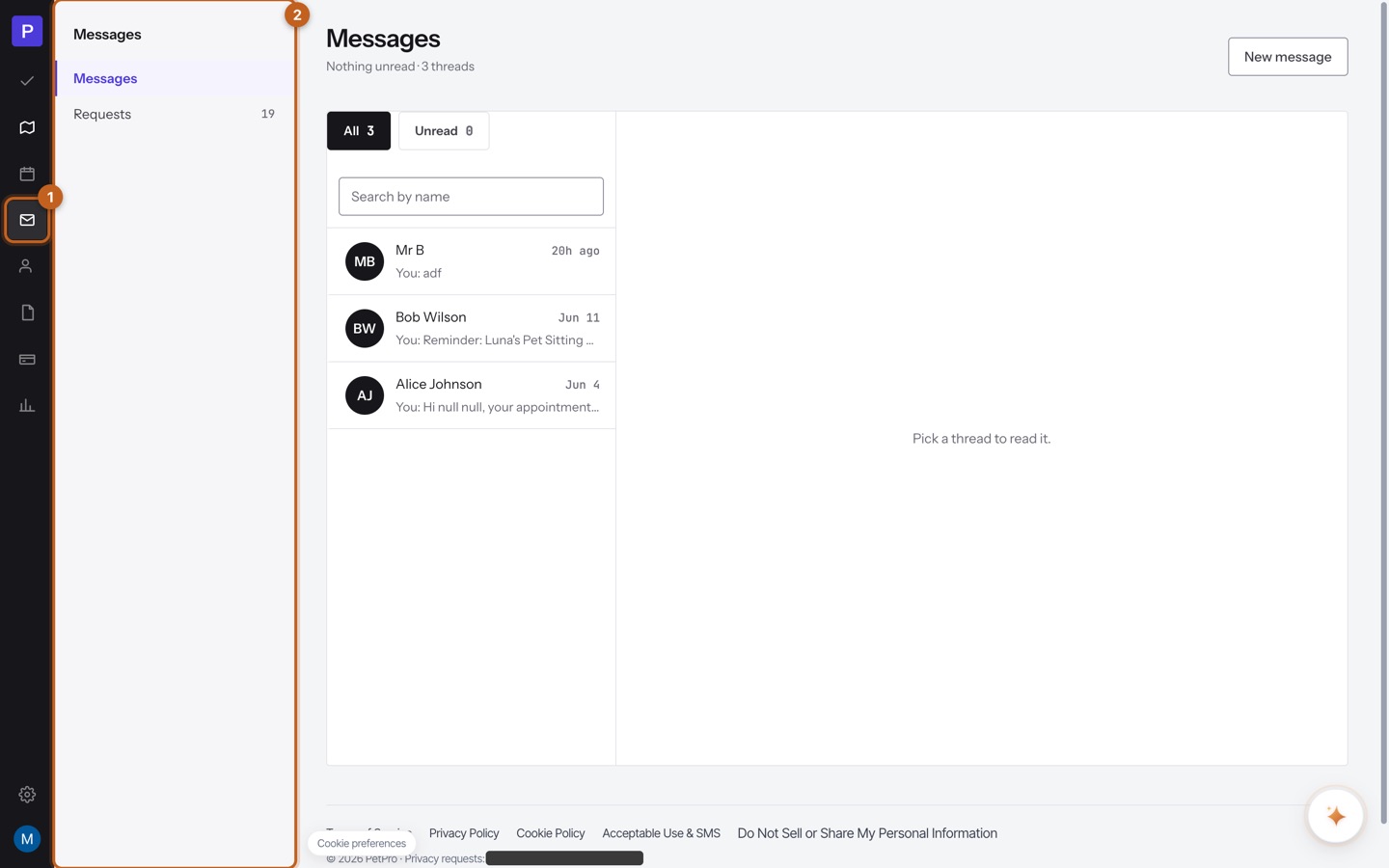
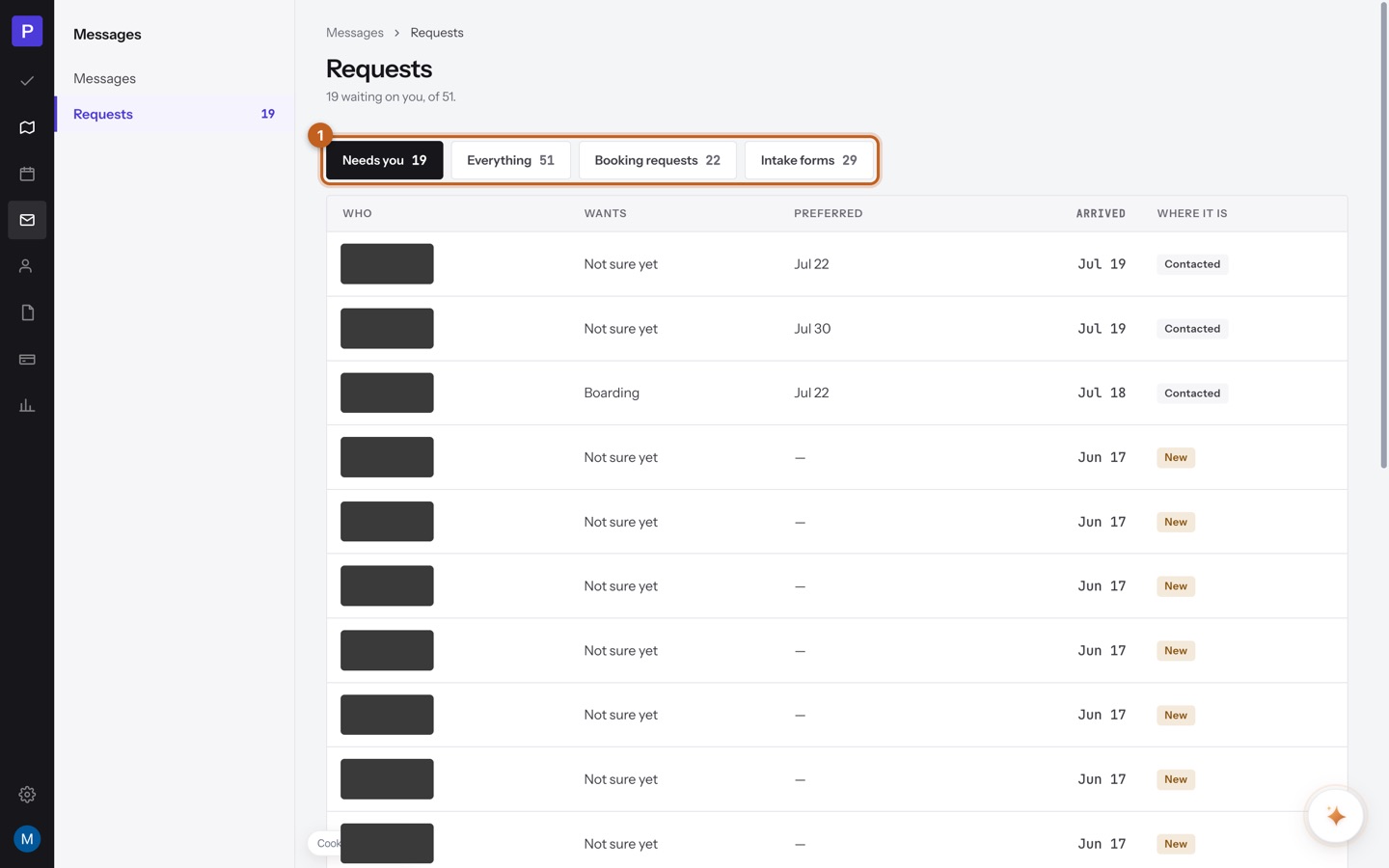
Open Requests and you'll see the second change: Intake forms merged in here too. One list, four filters (1) — Needs you, Everything, Booking requests, Intake forms. If you used to check two separate inboxes, you now check one, and Needs you is the only number you have to act on.
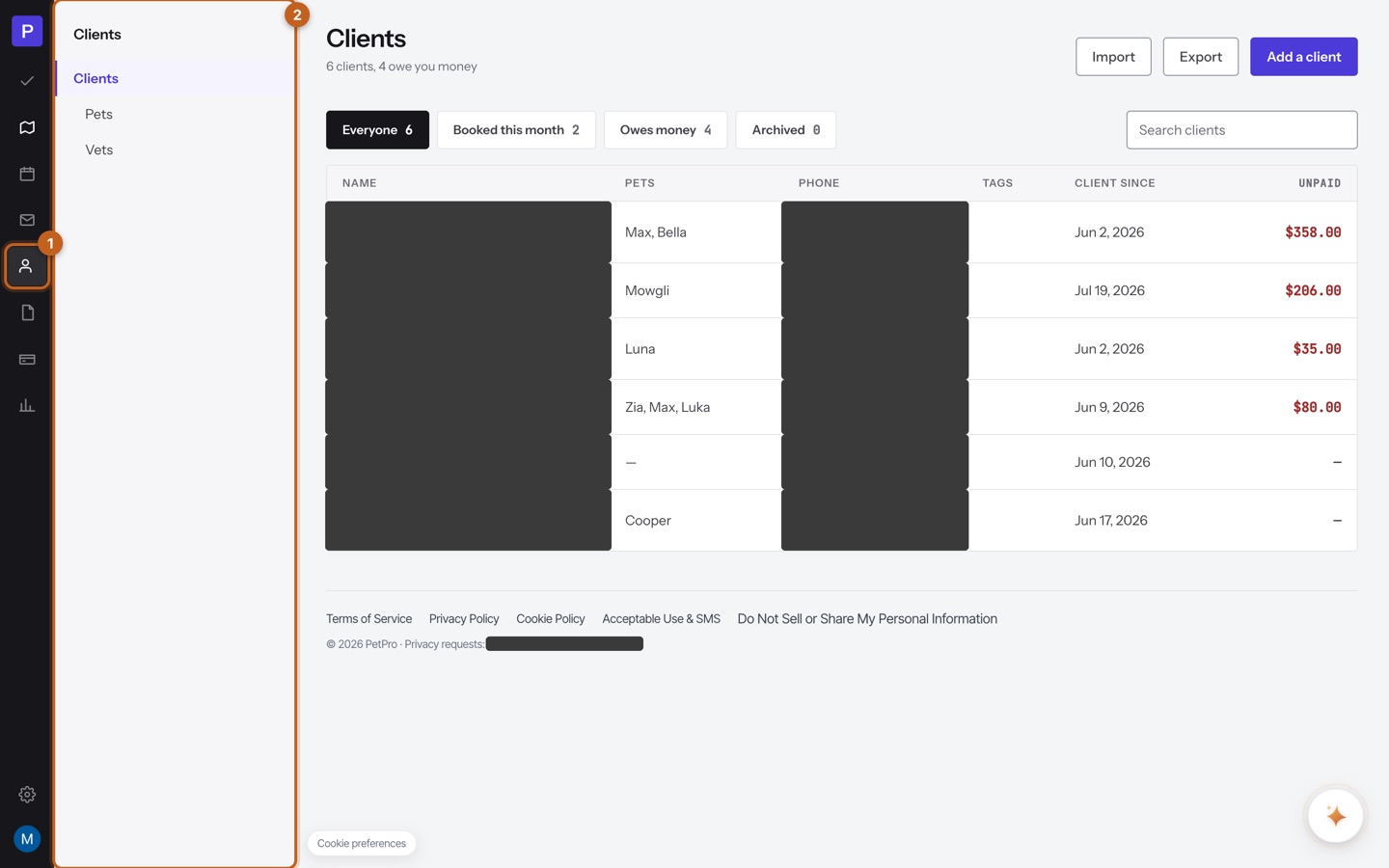
Clients (1) is your client book, and Pets and Vets now sit underneath it in the section list (2) instead of being separate sidebar items — they belong to clients, so they live with clients. The button reads Add a client (it used to be + Add client).
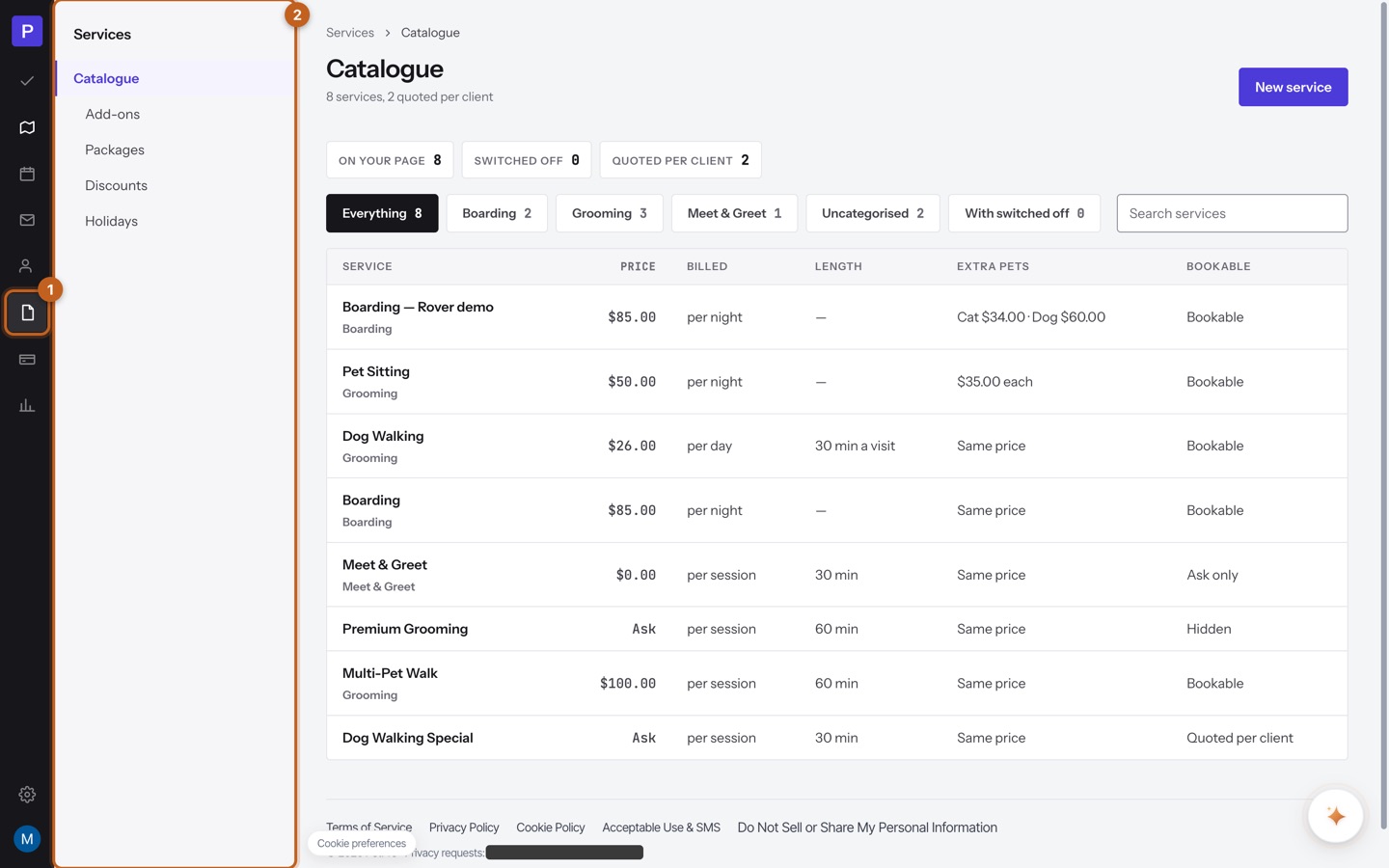
Services (1) is what you sell. The first screen is now called Catalogue, and four things are tucked under it in the section list (3): Add-ons, Packages, Discounts and Holidays. Two of those came up a level and two came down. Add-ons and Packages used to be tabs inside the Services screen, so you had to be on it to find them; they are screens of their own now. Discounts and Holidays used to be their own items in the sidebar, well away from Services, and have come to sit with the thing they change. The button is New service.
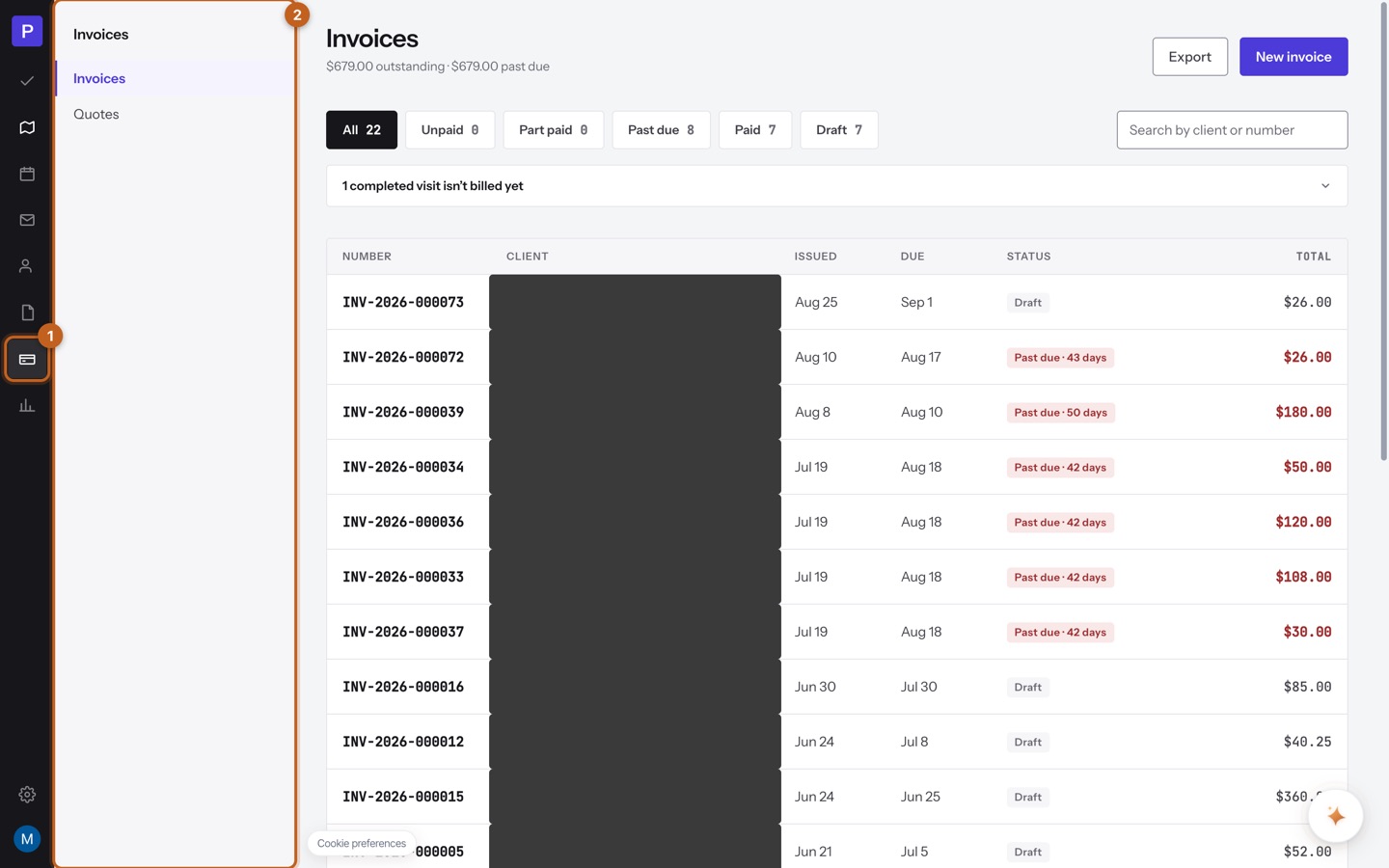
Invoices (1) is your money owed, and Quotes is now a section under it (2) rather than something you reach through an invoice. The button is New invoice.
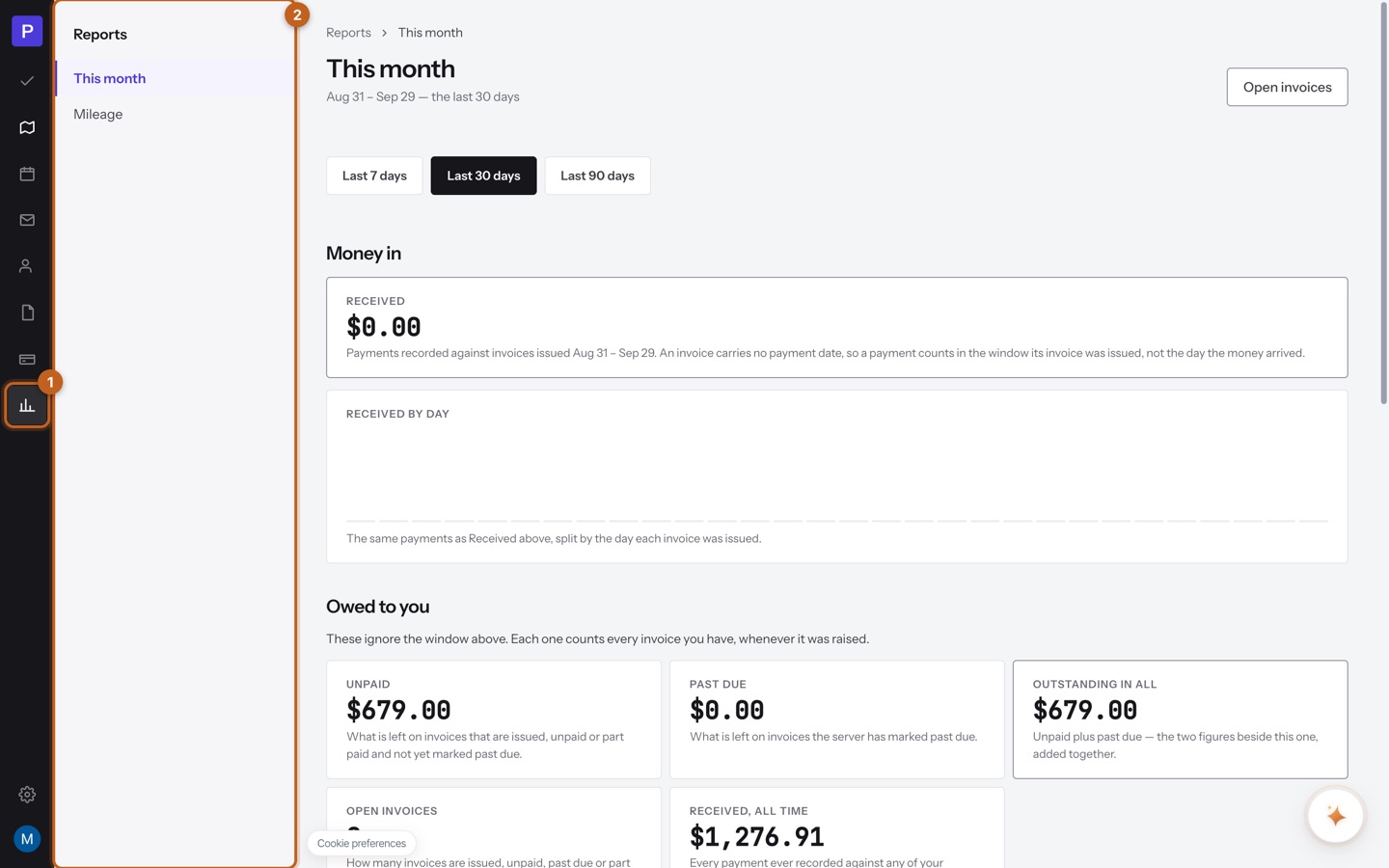
Reports (1) is where the Dashboard's figures went. This month (2) holds what came in and what you're owed over a window you choose, and Mileage holds your business miles. If you're hunting for a total you used to see on the Dashboard, look here.
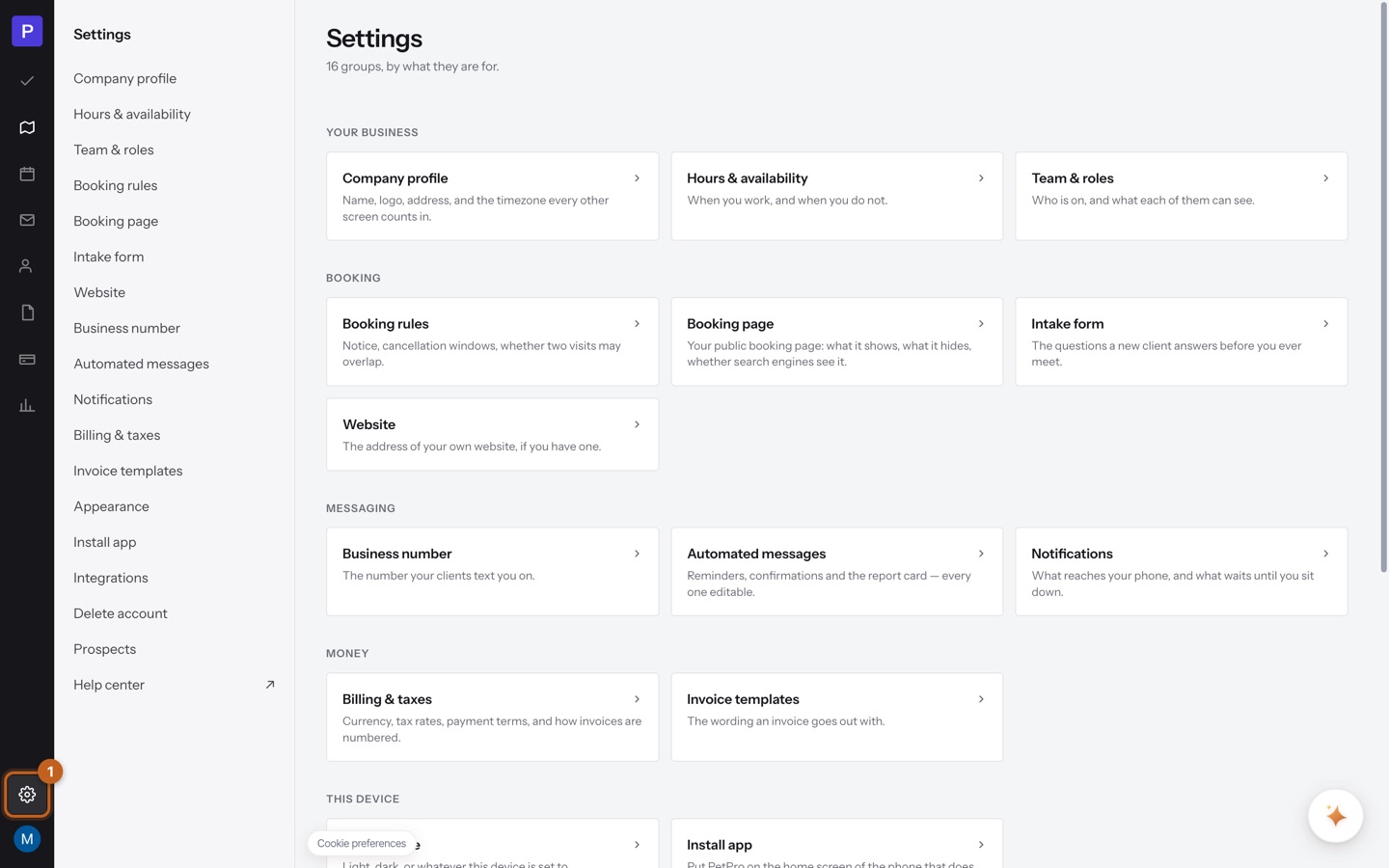
Settings is the gear at the foot of the rail (1) — not a sidebar item under Account any more. It opens an index of every group, sorted by what each one decides: Your business · Booking · Messaging · Money · This device · Connections · Account. The old Company profile, Hours & availability, Booking rules, Booking page, Intake form, Automated messages, Billing & taxes and the rest are all still here, in one of those parts.
The legal footer and the floating Cookie preferences button are gone from every screen. They used to sit under your work and over it — a row of policy links beneath every screen, and a small button pinned in the bottom-left corner wherever you were. Both now live in one place: Settings › Privacy & legal, in the Account part at the foot of the settings index. Nothing was taken away; it stopped following you around.
Settings › Privacy & legal holds three things. Policies links your Terms of Service, Privacy Policy, Cookie Policy and Acceptable Use & SMS — each opens in a new tab, so you don't lose your place. Your choices is where the old corner button went: Cookie preferences and Do Not Sell or Share My Personal Information both open the same panel, and what you change there applies to this device — it has no effect on what your clients choose on your booking page. Privacy requests gives you the address to write to about your own data; a request about a client's data comes to you, because you're the one who holds it.
Two settings groups are gone, and neither took anything with it — both folded into Booking page. The old Website group held one field, the address of a website you already have somewhere else; it is now inside Settings › Booking page, under the heading Another website you have, labelled Your website address. The old Booking requests group controlled what a client could ask you for; that is now decided service by service on the same Booking page screen, in the card Services on your booking page — each service is set to Bookable (visitors pick a time and send you a request to confirm), Show only (listed with a Request button and no times) or Hidden. Both moved next to your booking page because that is where they were always used — a group of its own for one field was a group too many.
Two groups in that list are new rather than moved: Appearance (light, dark, or whatever this device is set to) and Privacy & legal. And the Help link that used to sit at the very bottom of the old sidebar is now Help center, in this same list — it opens these guides in a new tab.
Below the gear, the round initial opens your account menu — Manage account and Sign out. That is the only thing that lives there.
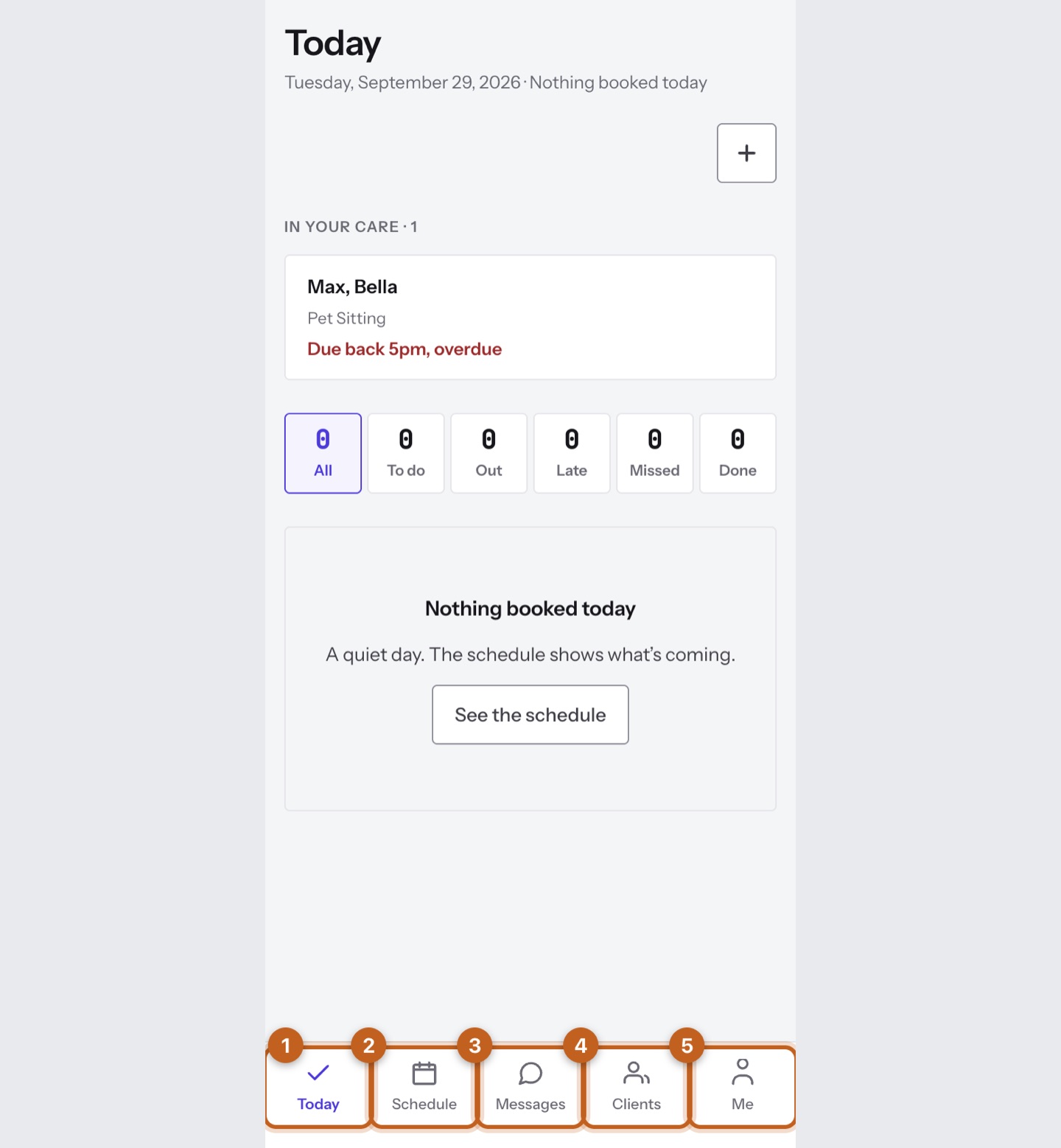
On a phone you get five tabs, and no More menu: 1 Today · 2 Schedule · 3 Messages · 4 Clients · 5 Me. The day's filters are shortened to fit — All · To do · Out · Late · Missed · Done are the same six states the desktop calls Everything · Not started · In progress · Late · Missed · Completed.
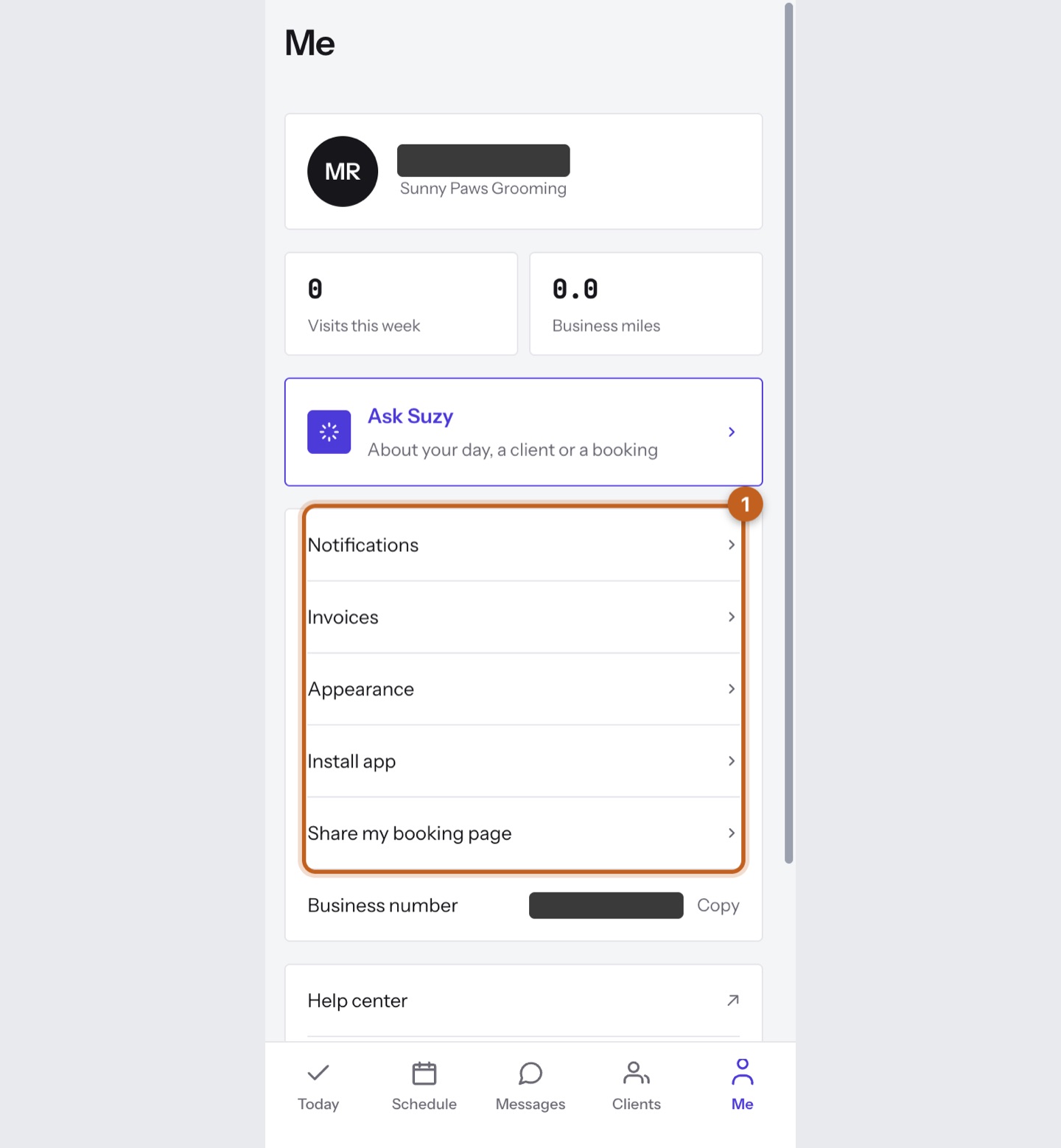
Me is the phone's version of Settings, cut down to what you'd change while you're out: Notifications, Invoices (read-only — you can see who owes you and share a link, but you raise invoices at a computer), Appearance, Install app and Share my booking page (1), plus your business number to copy. Ask Suzy sits at the top.
Scroll Me past that first group and there are two more. The middle one is Help center, Walk diagnostics and Privacy & legal — that last one is the phone's copy of the policies and the cookie choices, and it is why no phone screen carries a legal footer either. The bottom group is you rather than your business: Your account (your email, password and two-factor sign-in), Sign out, and Delete account in red. On a phone Your account is the only way to change your own password, so it is worth knowing it is there.
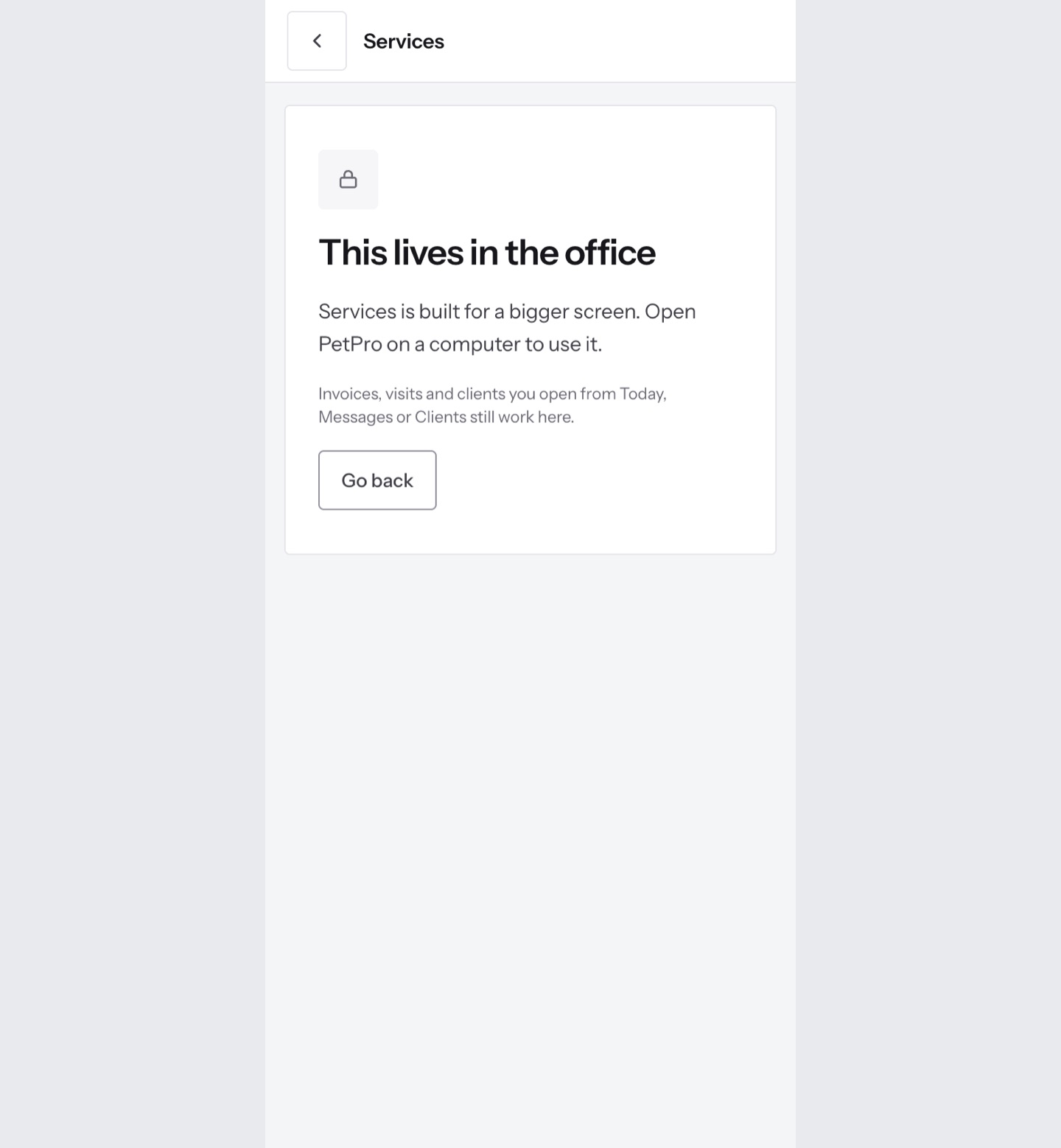
If you open a desktop-only screen on a phone — from a push, an email link, or Suzy — you get This lives in the office instead of a squashed screen. Plan, Services, Add-ons, Packages, Discounts, Holidays, Quotes, Reports, Mileage, the Pets list, Vets and most of Settings are office screens — Plan included, because Today already carries the day's route and On my way, which is the part of it you need while you're out. Invoices, visits and client records you open from Today, Messages or Clients still open normally on the phone, as do Next week and Cancelled from the Schedule tab, and Privacy & legal from Me.
Some screens answer to a new name. Veterinarians is now Vets. Holidays & surcharges is now Holidays. Discount codes is now Discounts — it still holds the same three parts, codes and the rules that apply themselves and cheaper long stays. The Services screen is titled Catalogue, though the place on the rail is still called Services. Intake forms and Booking requests are both Requests. And the Dashboard's greeting — Good morning, your name — is gone: that screen is Today. The buttons gained a small word: Add client is Add a client, Add pet is Add a pet, Add vet is Add a vet, Add holiday is Add a holiday. New service, New booking, New invoice and New quote read exactly as they did. Nothing behind any of these changed — only the wording.
Your settings groups kept their names, every one of them — Company profile, Hours & availability, Team & roles, Booking rules, Booking page, Intake form, Business number, Automated messages, Notifications, Billing & taxes, Invoice templates, Integrations, Install app and Delete account all read as they always did. What changed is the order, because they're now sorted into parts rather than listed in one run: Hours & availability comes before Team & roles, Business number leads the Messaging part, and Appearance and Install app come before Integrations. If you used to find a group by its position in the list, find it by its part instead.
The short version. Dashboard → Today. Dashboard money figures → Reports › This month. Dashboard Promote your booking page → Settings › Booking page. Booking requests → Messages › Requests. Intake forms → Messages › Requests, the Intake forms filter. Pets → Clients › Pets. Vets → Clients › Vets. Discounts → Services › Discounts. Holidays → Services › Holidays. Add-ons → Services › Add-ons. Packages → Services › Packages. Quotes → Invoices › Quotes. Mileage → Reports › Mileage. Settings → the gear at the foot of the rail. Settings Website → Settings › Booking page, Another website you have. Help → Settings › Help center. The legal footer under every screen and the floating Cookie preferences button → Settings › Privacy & legal on a computer, Me › Privacy & legal on a phone.