Pet Professionals Help Open the app ↗
Bookings & care · Guide 9

Set your business hours & booking rules

Tell PetPro the days and times you work, and whether you take overlapping bookings.

For
Every pro
Time
~1 min
Before you start
After Get started

Two settings decide when and how clients can book you. Operating hours set the days and times you work — they shape the slots on your public booking page and flag anything booked outside them. Booking rules decide whether you can take more than one appointment at once. Set both once and PetPro keeps everyone inside them.

  1. 1

    Open Settings → Hours & availability. For each day, use the toggle to mark it open or closed, then set the open and close times — or tick Open 24 hours for round-the-clock services like boarding. A closed day (like Sunday here) simply shows Closed and won't offer slots. Click Save when you're done.
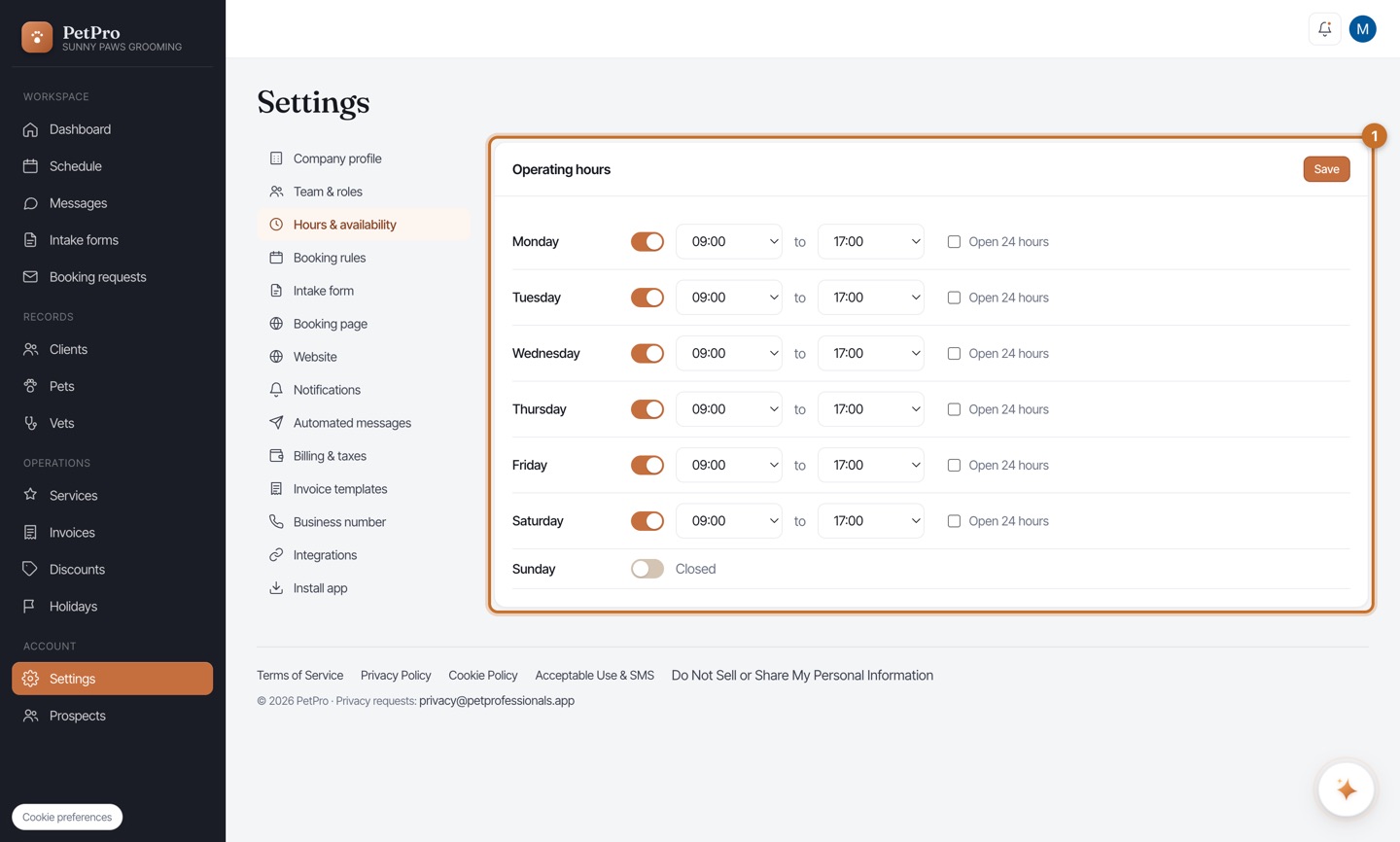
    Set your business hours & booking rules — step 1
  2. 2

    Open Settings → Booking rules and set Allow concurrent bookings. On lets you take overlapping appointments — perfect for boarding or daycare where several pets are in your care at once; the booking screen still warns you about an overlap but never blocks it. Off means one booking at a time, and any overlapping booking is blocked.
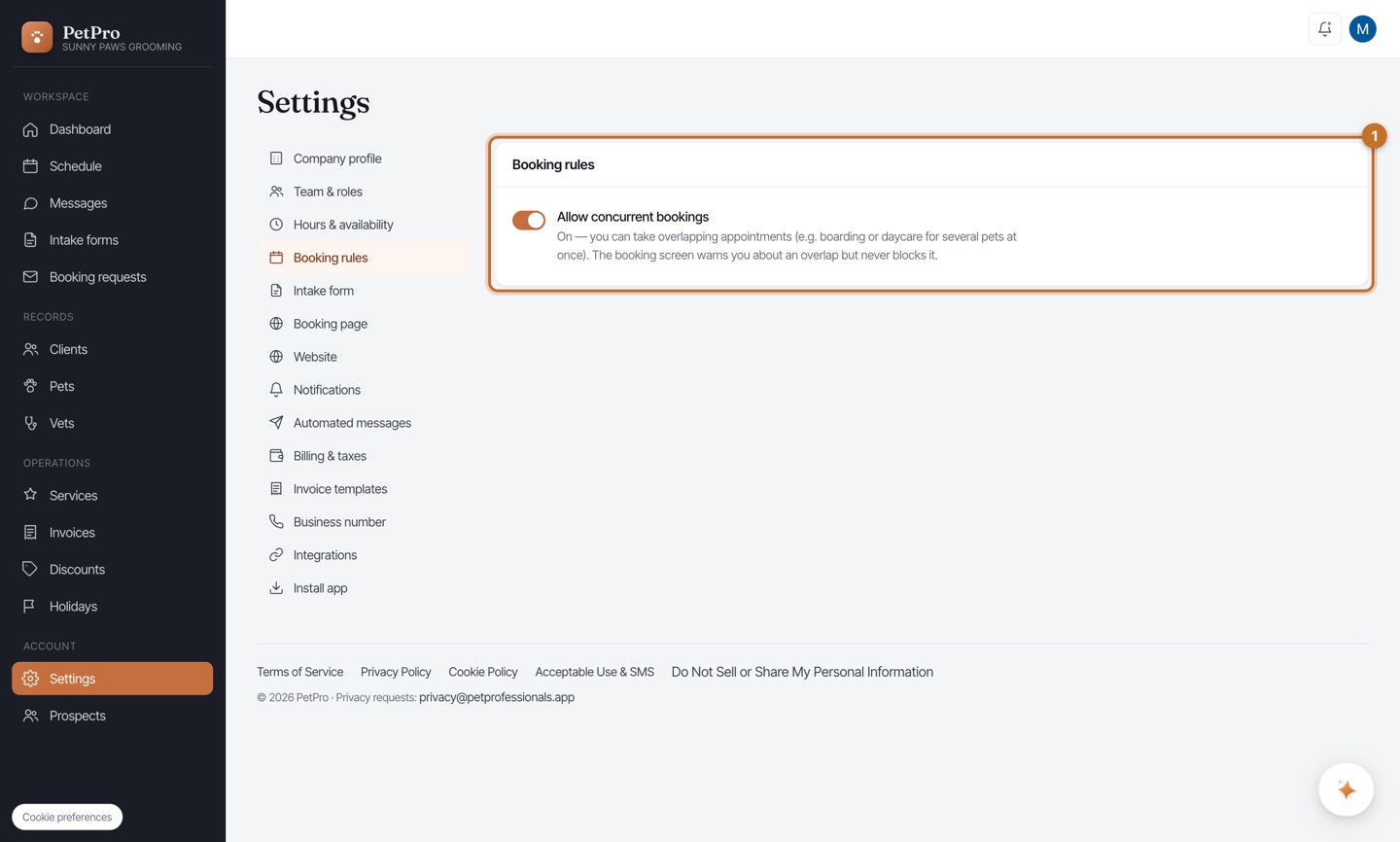
    Set your business hours & booking rules — step 2
You're done

Your hours now shape the times clients can pick on your booking page, and your concurrency rule decides whether overlaps are allowed. For one-off closures and holiday surcharges, pair this with Days off & holiday surcharges.