Pet Professionals Help Open the app ↗
End-to-end workflows · Guide 24

How a client books you

See exactly what a client experiences on your public page — from landing to sending a request.

For
Understand your client's view
Time
2 min read
Before you start
A published booking page

It helps to see your booking page the way a client does. When you share your link — or someone finds it on Google — this is exactly what they get: no app, no login. Their request lands in your Booking requests inbox, where you approve it or send a quote. Here's their side, start to finish.

  1. 1

    The client lands on your public page — your branding, services, reviews, hours, and a big Book now. Everything they need to decide is in one place.
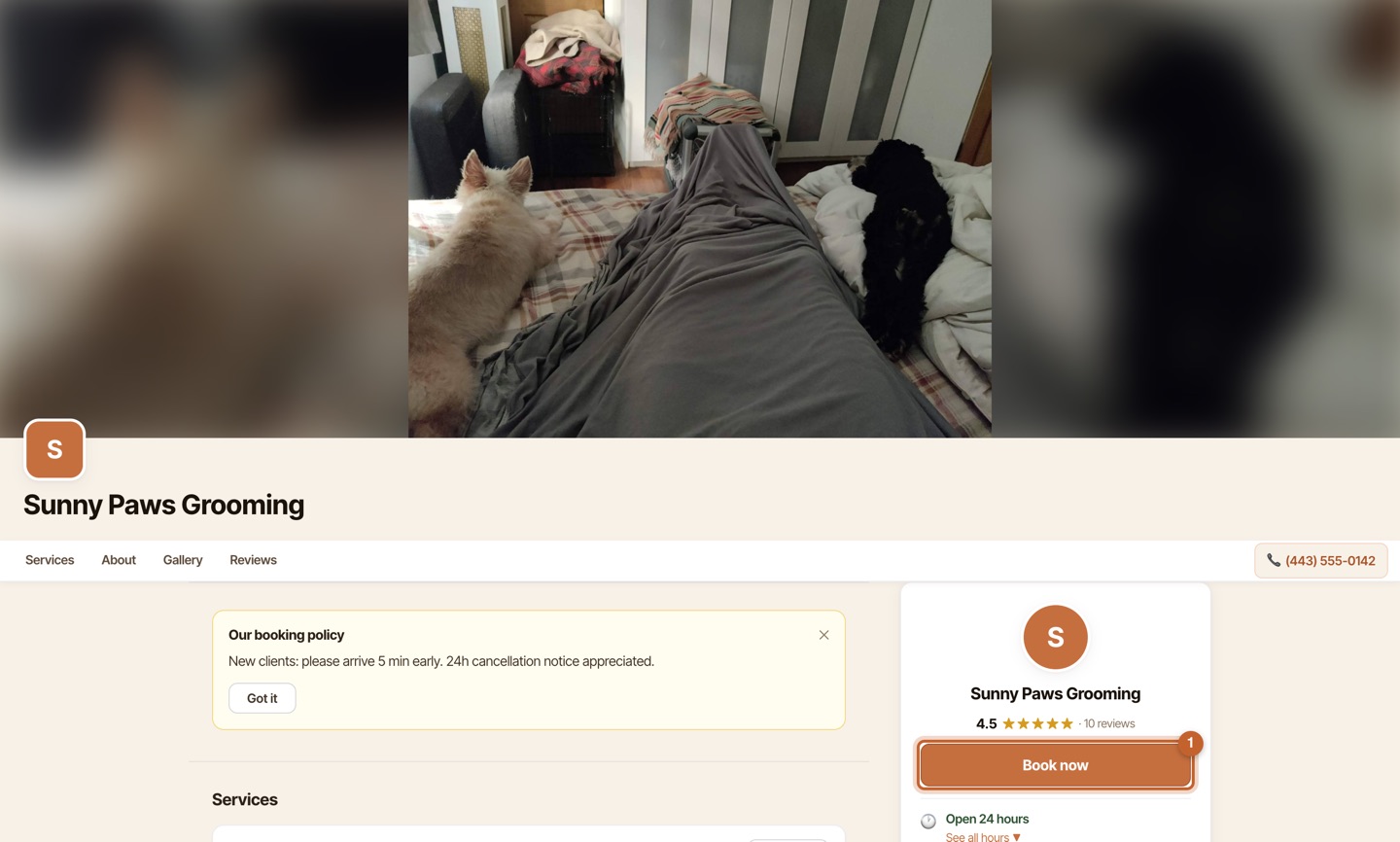
    How a client books you — step 1
  2. 2

    They browse your services with prices and tap Request on the one they want. (Prices are hidden here if you turned them off in Settings → Booking page.)
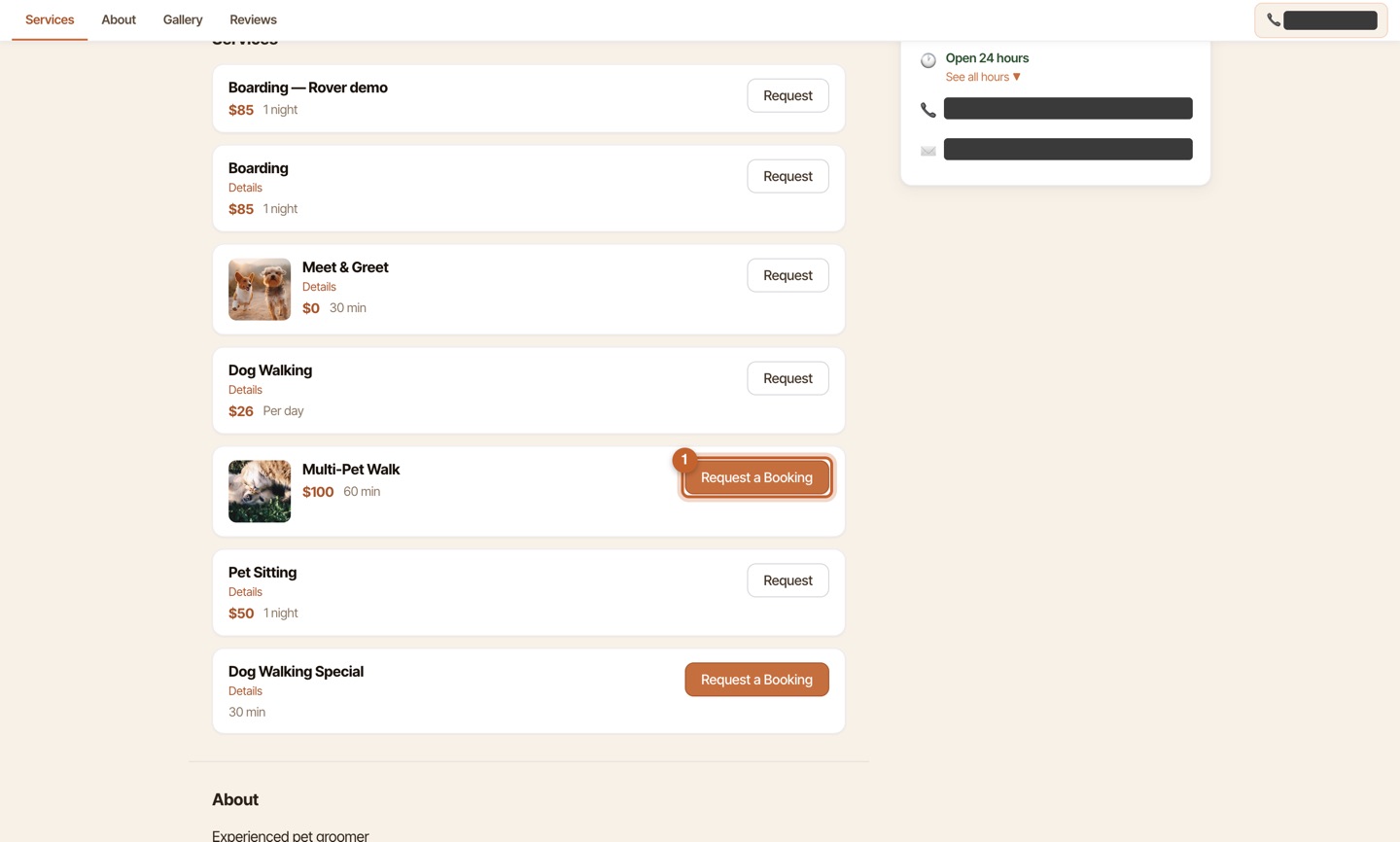
    How a client books you — step 2
  3. 3

    They pick a date from your available days, then a time — a simple Date → Time → Details wizard. Only days and times you're actually open show up.
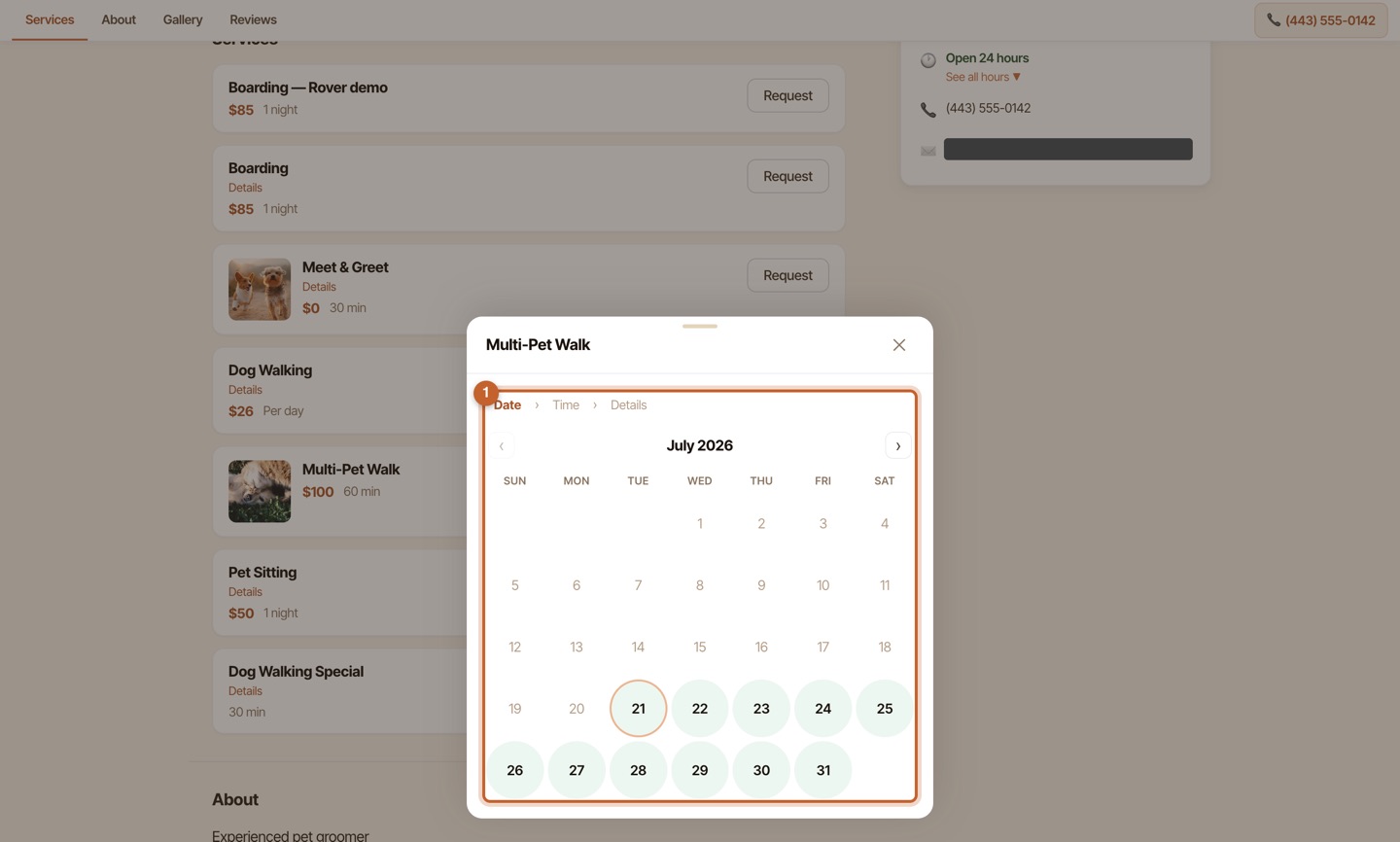
    How a client books you — step 3
  4. 4

    They enter their name, mobile, and email (and optionally their pet), then tap Send request. That's it — no account to create.
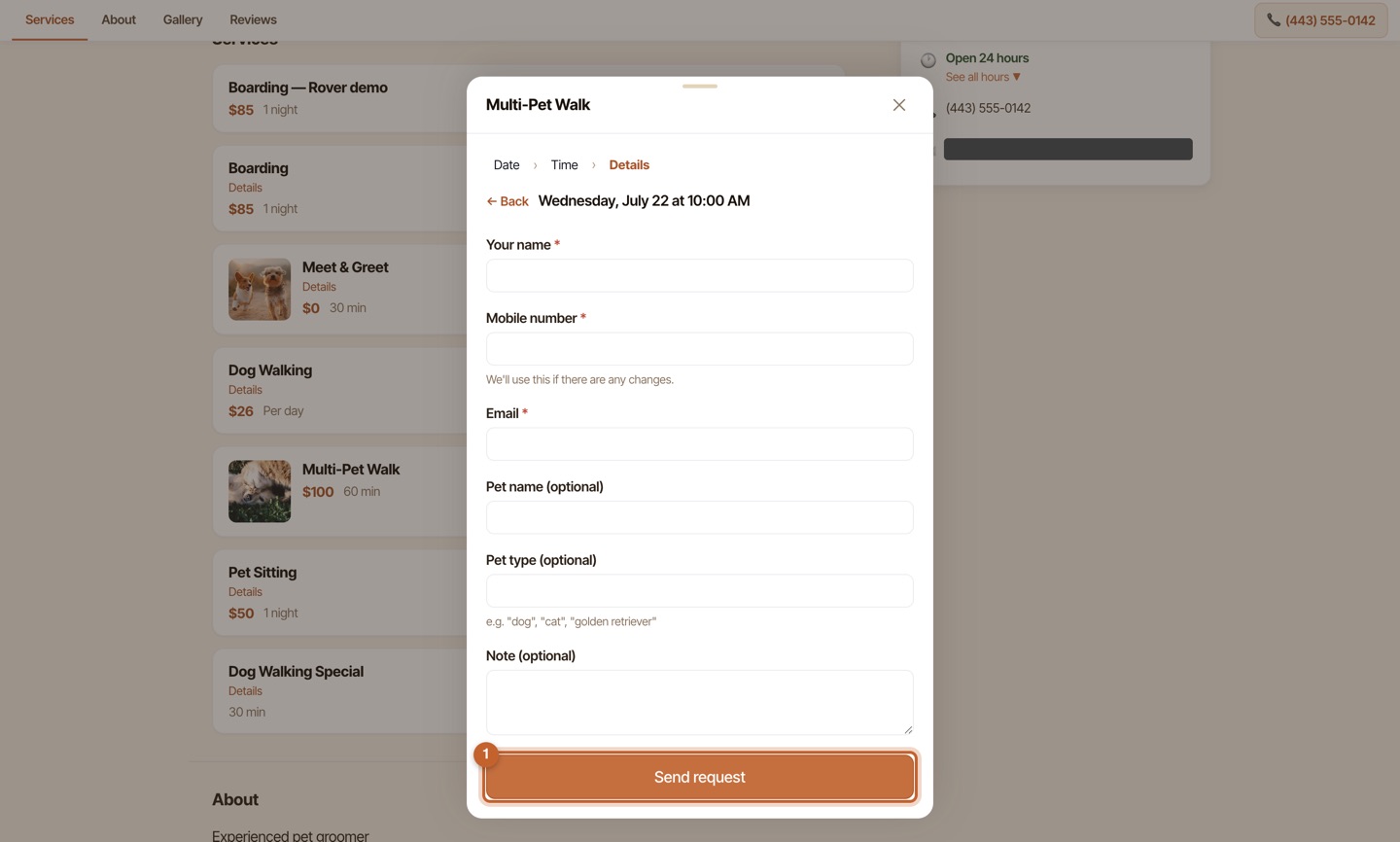
    How a client books you — step 4
You're done

Their request drops straight into your Booking requests inbox, ready for you to approve or quote — see From request to booking.